How to Compress Video Files for Faster Content Delivery and Better ROI
Learn how to compress video files for the web without losing quality. Our guide offers B2B marketers actionable steps for faster delivery and higher engagement.

For B2B SaaS marketing teams, video compression is the strategic process of reducing a video file's size to accelerate content delivery and maximise its value. By intelligently re-encoding a video using an optimised codec, bitrate, or resolution, you can transform a cumbersome 2GB webinar recording into a streamlined 450MB asset. This isn’t just a technical tweak; it's a critical step for efficient content repurposing, faster distribution, and improved demand generation—all without sacrificing the professional quality your brand stands for.
Why Video Compression Is a Strategic Advantage in B2B Marketing
Slow-loading videos and unmanageable webinar files are more than just a workflow bottleneck; they're a direct barrier to revenue. In the competitive SaaS landscape, every piece of content must convey authority and efficiency. A buffering product demo on a landing page or a webinar replay that fails to load quickly undermines your brand's credibility and creates friction in the buyer's journey, costing you valuable leads.

Effective video compression isn’t about making files smaller for the sake of it. It’s a strategic lever for improving performance, efficiency, and ROI across your entire content pipeline.
Accelerating Your Content Pipeline
Consider a common scenario: your team has just delivered a powerful 60-minute webinar on a new product feature. The raw recording is a 2GB file. Without a solid compression strategy, the process of turning that high-value asset into bite-sized clips for social media, an embedded video for a blog post, and a key asset for an email nurture sequence becomes a slow, resource-intensive grind.
By implementing a standardised compression workflow, you can reduce that file size by over 75%. This seemingly minor technical step dramatically improves team efficiency, enabling you to move from production to multi-channel distribution in hours instead of days. This agility is crucial for maximising the ROI of every virtual event and maintaining a consistent content output. For more on optimising this process, explore our guide on effective webinar asset management.
Enhancing User Experience and Lead Generation
Your website's performance is directly linked to lead generation. A video that buffers indefinitely will cause visitors to abandon the page, resulting in a lost opportunity. By compressing videos for web delivery, you ensure a seamless playback experience that keeps your audience engaged and increases the likelihood they will convert on a form or CTA.
For B2B marketers, video compression isn’t just a post-production task; it's a core component of a high-performance digital strategy. It ensures your high-value content is accessible, professional, and capable of driving demand without technical friction.
This industry-wide focus on quality and delivery is driving significant investment. The global video processing platform market is projected to grow from US$ 12.06 billion in 2025 to US$ 58.96 billion by 2035, underscoring the enterprise-level commitment to optimising video workflows.
Getting to Grips with Video Compression
You don’t need to be a video engineer to manage your company's video assets, but understanding a few core concepts will enable you to make smarter, more strategic decisions. Mastering these basics directly translates to improved marketing outcomes, such as faster-loading landing pages, reduced cloud storage costs, and a consistently professional brand image.

Think of a video file as a package. The container is the box (e.g., MP4, MOV), holding the video and audio streams inside. The codec is the compression technology used to pack and unpack those contents efficiently.
Choosing the Right Codec and Container
For virtually all B2B marketing applications—from website background videos to social media clips—the MP4 container is the industry standard. Its universal compatibility ensures flawless playback across nearly every device and platform.
Inside that MP4 container, you need to choose a codec. Here are the two most relevant options for marketing teams:
- H.264 (AVC): This is the workhorse of the industry. It offers an excellent balance of quality and file size, and its primary advantage is universal compatibility. It simply works everywhere.
- H.265 (HEVC): The successor to H.264, this codec is significantly more efficient, capable of reducing file size by up to 50% compared to H.264 at the same visual quality. While support is growing, it's not yet ubiquitous. Reserve it for internal archives or platforms you have confirmed can support it.
The relentless drive for more efficient codecs is fuelling market growth. In the UK, for instance, the online video platform market was valued at US$ 112 million in 2023 and is forecast to reach US$ 161 million by 2029, largely because standards like H.265 make high-quality streaming more accessible. You can read more on the UK video platform market on researchandmarkets.com.
Mastering Bitrate and Resolution
If the codec is how a video is compressed, bitrate is how much data is allocated to each second of that video. Measured in megabits per second (Mbps), it directly influences both file size and visual quality. A higher bitrate equals more data, better quality, and a larger file.
Resolution refers to the pixel dimensions of your video (e.g., 1920x1080 for Full HD). While it’s tempting to export everything at the highest possible resolution, this often results in unnecessarily large files with no discernible benefit for the viewer.
For a typical 60-minute webinar recording, exporting at 1080p with a bitrate between 4-6 Mbps using the H.264 codec is the sweet spot. This consistently transforms a 2GB raw file into a 450MB asset, perfect for web streaming without sacrificing clarity.
Achieving this balance is key to efficiency. To learn more about maintaining visual fidelity, read our guide on video compression without losing quality. This ensures your thought leadership content appears polished and professional, regardless of the viewing platform.
To help you standardise your video outputs, use this table as a guide for common B2B marketing assets.
Recommended Compression Settings for B2B Marketing Videos
| Asset Type | Recommended Codec | Target Bitrate (1080p) | Typical File Size Reduction | Best For |
|---|---|---|---|---|
| Webinar Recordings | H.264 (AVC) | 4-6 Mbps | 70-80% | On-demand replays, website embeds, and internal training. |
| Social Media Clips (1-3 min) | H.264 (AVC) | 8-12 Mbps | 50-60% | LinkedIn, YouTube, and paid ads where quality is key. |
| Product Demos | H.264 (AVC) | 6-10 Mbps | 60-70% | Sales enablement assets and website feature pages. |
| Internal Video Archive | H.265 (HEVC) | 3-5 Mbps | 80-90% | Long-term storage where file size is critical and playback is controlled. |
Optimising these settings is a strategic decision that impacts everything from your website's load speed to your cloud storage budget. The goal is not just to shrink files, but to create efficient, shareable, and effective assets that engage your target audience.
To ensure your source footage is pristine from the start, check out our guide on how to capture high-quality video with your existing devices. By understanding these core components, you can brief creative teams with confidence and ensure every video asset drives business results.
A Practical Walkthrough to Compressing Webinars with HandBrake
For B2B marketing teams needing a powerful, reliable, and free tool for video compression, HandBrake is the industry standard. It provides granular control without an intimidating interface, making it ideal for optimising webinar recordings for your website, social channels, and email campaigns.
Let’s walk through a common workflow: you've just finished a 60-minute webinar, and the raw recording is a 2GB file. Your objective is to convert it into a web-ready file of around 450MB that maintains a sharp, professional appearance for lead generation and content repurposing.
Implementation Step 1: Open Your Source File
Launch HandBrake and load your large webinar file. The interface prompts you to select a source. You can drag and drop the file directly into the window or use the 'File' button to browse your computer.
Once loaded, HandBrake analyses the file and presents all available settings.
This screenshot shows the initial view after loading a file.
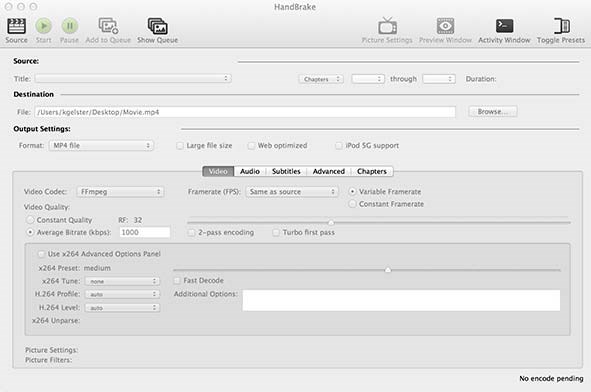 The source video details are on the left, a list of presets is on the right, and the detailed settings tabs are in the centre.
Implementation Step 2: Select a Preset to Maximise Efficiency
HandBrake's presets are a significant time-saver. They provide a tested baseline of settings for various use cases, meaning you don't need to configure everything from scratch for standard B2B content like a webinar replay.
Navigate to the ‘Presets’ panel. For a standard 1080p recording, the Fast 1080p30 preset is an excellent starting point. It's designed to balance quality with encoding speed—a major efficiency gain for busy marketing teams. It automatically selects the H.264 codec and a suitable frame rate, delivering a professional output without requiring deep technical knowledge.
Using a robust preset like 'Fast 1080p30' can reduce initial setup time by over 90%, allowing your team to focus on fine-tuning for quality rather than building a compression profile from the ground up.
Implementation Step 3: Fine-Tune Quality with Constant Rate Factor (CRF)
This is where you gain precise control. Instead of guessing a bitrate, HandBrake uses a more intuitive metric called Constant Rate Factor (CRF). It’s a quality-based setting that instructs the encoder on the desired level of visual polish.
A lower CRF number results in higher quality and a larger file, while a higher number increases compression and reduces file size. The scale ranges from 0 (lossless, enormous file) to 51 (heavily compressed).
For B2B webinar content, where clarity of on-screen text and speaker presentations is paramount, a CRF value between 20 and 23 is the sweet spot.
- CRF 20: Produces a visually pristine file nearly indistinguishable from the original. Ideal for a hero video on your homepage or a key product demo.
- CRF 23: Offers a significantly smaller file size with minimal perceptible quality loss. Perfect for on-demand webinar replays and social media clips where loading speed is a priority.
For our 2GB file, setting the CRF to 22 will consistently produce a file in the target 450MB range while ensuring all content remains sharp and professional.
Implementation Step 4: Finalise and Start the Encode
Before initiating the compression, perform these final checks:
- Audio Tab: Navigate to the Audio tab and ensure the codec is set to AAC (Advanced Audio Coding). A bitrate of 128-160 kbps is sufficient for clear voice audio without unnecessarily increasing the file size.
- Save As: Use a clear naming convention for your output file, such as
[WebinarName]_1080p_CRF22.mp4. This helps you track which settings were used for each asset. - Start Encode: Click the green 'Start Encode' button. The encoding time will depend on your computer's processing power and the video's length, but you now have a repeatable, efficient workflow.
By following these steps, you’ve established a reliable system for transforming raw recordings into polished, efficient marketing assets. This process is a foundational element of any effective post-production workflow, a topic we explore further in our article on why your webinar content deserves a post-production glow-up. Mastering this allows you to accelerate your content pipeline and ensure every video reinforces your brand's commitment to quality.
Scaling Your Video Production with Advanced Workflows
When one webinar needs to become ten different marketing assets, compressing files individually is a major drain on resources and momentum. This manual, click-by-click approach doesn't scale for lean B2B marketing teams under pressure to consistently produce content. It's time to move beyond single-file workflows and embrace automation to save hours, not just minutes.
For teams ready to scale, this means leveraging powerful tools like FFmpeg for command-line efficiency or HandBrake’s batch processing features. These methods directly address the pain point of limited resources by automating repetitive work, freeing up your team to focus on content strategy and demand generation instead of monitoring a progress bar.
The goal is to build an automated system that converts raw footage from a virtual event into a suite of optimised assets with minimal manual intervention.
Command-Line Compression with FFmpeg
For maximum control and repeatability, nothing surpasses FFmpeg. It’s a free, open-source tool that operates via the command line and can handle virtually any video processing task. While the command line may seem daunting, a few simple scripts are all you need to create a powerful workflow for generating multiple video versions from a single master file.
This is ideal when you need different versions of the same webinar clip for various platforms. For instance, you could generate a high-quality version for your website, a more compressed version for an email campaign, and a vertical cut for social media—all from a single command.
Here’s a practical, copy-and-paste example for a standard 1080p webinar recording:
ffmpeg -i webinar-master.mp4 -c:v libx264 -crf 23 -preset medium -c:a aac -b:a 128k website-version.mp4
This command instructs FFmpeg to take webinar-master.mp4, compress it with the H.264 codec (libx264) at a quality level of 23 (-crf 23), and create a new file named website-version.mp4. This simple script can save your team 15-20 minutes of manual work per video. Across an entire content calendar, this translates to significant efficiency gains. Mastering such automations is a key step in learning how to 3x your webinar output without adding headcount.
Batch Processing for Virtual Events
Imagine you've just concluded a multi-session virtual conference and now have a folder with dozens of individual speaker recordings. Instead of a full day of repetitive manual work, you can use HandBrake’s batch processing feature to queue the entire folder for overnight compression. Every file is optimised consistently, without requiring anyone to click "start" repeatedly.
This workflow is a game-changer for content teams. You can configure the entire batch in minutes, walk away, and return to a folder filled with perfectly sized, ready-to-use videos.

The key benefit here is standardisation. By applying a consistent preset across all files, you ensure brand consistency and achieve predictable file sizes for every asset.
The implementation steps are straightforward:
- Select Your Source: In HandBrake, choose ‘Folder (Batch Scan)’ instead of a single file.
- Configure Your Preset: Select your preferred preset (e.g., Fast 1080p30) and adjust the CRF value as needed.
- Add to Queue: Click the 'Add to Queue' button. HandBrake will identify all video files in the folder, apply your settings, and add them to the processing queue.
- Start the Queue: Click 'Start Queue' and let the automation run.
This "set it and forget it" approach dramatically increases your team's output capacity. This is vital when audiences are demanding more video content than ever. For example, internet users in the UK are projected to spend an average of 8.8 hours per day with digital content in 2025—a 31% increase from 2021—driven largely by video. Efficient workflows are the only way to meet this demand.
Beyond compression, a critical part of scaling video production is ensuring audio and video remain perfectly synchronised. After a large batch job, spot-check a few files to confirm alignment. If you notice any drift, knowing how to synchronize audio with video is an essential skill.
By adopting these advanced workflows, you can transform video compression from a time-consuming task into a strategic advantage, enabling your team to produce more high-impact content, faster.
Maintaining Brand Compliance and Quality After Compression
For marketing teams in highly regulated sectors or those serving enterprise clients, "good enough" is never an option. Over-compressing a video file does more than degrade its quality; it can actively damage your brand.
Visual artefacts can make branded overlays appear unprofessional, render crisp speaker titles blurry, and—most critically—make essential on-screen text unreadable. This is not just an aesthetic issue; it can introduce compliance risks and erode the professional image you have worked hard to cultivate.

This is why a structured quality assurance (QA) process is a non-negotiable step in your workflow. After compressing a video, a quick but thorough spot-check is all it takes to prevent a minor technical issue from becoming a major brand liability.
Your Practical Post-Compression QA Checklist
Before publishing any compressed video, implement this simple yet effective checklist. It requires only a few minutes but can prevent costly and embarrassing errors. We recommend watching the first minute, a section from the middle, and the final 30 seconds of each video to get a reliable sample.
Check Text and Graphics Legibility: Pause the video where on-screen text appears, such as a speaker’s name and title or a data-heavy slide. Is every word perfectly crisp and readable? Pay close attention to any disclaimers or fine print; any ambiguity here could have serious implications.
Verify Brand Colour Accuracy: Examine your company logo and any branded graphics. Compression can sometimes cause subtle colour shifts, altering your specific brand colours. This minor change can make your content feel unprofessional and inconsistent with other marketing materials.
Confirm Audio-Video Synchronisation: Is the speaker's audio perfectly aligned with their lip movements? Even a minor delay can be highly distracting for viewers and make the entire presentation feel amateurish. This is especially important at the beginning and end of the video, where edits are most frequent.
Preserving Critical Metadata and Captions
For many B2B organisations, the data within the video file is as important as the video itself. Crucial elements like closed captions and metadata must be preserved through the compression process to meet accessibility standards and compliance requirements.
When a webinar is used for Continuing Professional Education (CPE) credits, for example, accurate captions are often mandatory. Losing them during compression not only fails your audience but can also invalidate the educational credit—a significant issue for your organisation and its clients.
Preserving accessibility features like closed captions isn't just a technical detail; it's a core component of your brand's commitment to inclusivity and professionalism. Failing to do so can alienate a portion of your audience and create unnecessary compliance risks.
Most professional video tools, including HandBrake, feature dedicated tabs or settings for subtitles and metadata. Before starting an encode, ensure you have selected the option to "pass through" any existing caption tracks. This embeds the data so it can be toggled on or off by the viewer, which is the ideal implementation for most web players.
Ultimately, a systematic approach to quality control is the final, crucial step in any professional video workflow. It ensures the efficiency gains from compression do not come at the expense of your brand's integrity. For teams that require guaranteed compliance and brand consistency without the administrative burden, partnering with a dedicated production service like Cloud Present can be a strategic move. As your partner, we manage the entire technical process, including meticulous QA, so you can focus on your message and strategy.
Partnering to Streamline Your Webinar Production
Mastering video compression empowers your team to produce more high-quality content, faster. You now have the technical knowledge, but the greatest efficiency gain often comes from shifting your team’s focus from manual production tasks back to what they do best: driving revenue through marketing strategy.
Realistically, for most B2B marketing teams, time spent on technical production—encoding, compression, and endless quality checks—is time not spent on strategy, client engagement, or demand generation. This operational drag can easily slow your content pipeline by 30-40%, directly impacting lead flow and campaign momentum.
From Technical Tasks to Strategic Impact
This is precisely the bottleneck a strategic partner like Cloud Present is designed to eliminate. We function as an extension of your team, handling the entire technical production workflow, from initial recording to expert compression and optimisation for every channel. This frees your marketing specialists to concentrate on high-value activities like crafting compelling narratives and building client relationships.
The true ROI isn't just a smaller file size; it's the reclaimed hours your team can reinvest into strategic initiatives. By offloading technical production, you can accelerate your content turnaround from weeks to just a few days.
This partnership model offers several distinct advantages for busy B2B teams:
- Guaranteed Brand Consistency: Every asset is professionally edited and compressed to meet your precise brand standards, ensuring a polished, authoritative image across all platforms.
- Faster Turnaround Times: We deliver polished webinar recordings and repurposed assets in days, not weeks, allowing you to capitalise on timely market insights while they are still relevant.
- Strategic Content Repurposing: We transform a single webinar recording into a suite of strategic marketing assets—from social media clips to blog embeds—all optimised for performance and designed to fuel your content engine.
By delegating the technical complexities, you are not just outsourcing a task; you are investing in a more agile and effective marketing engine. If your team is ready to move beyond technical headaches and focus on strategic growth, explore our comprehensive webinar production services to see how we can help.
Your Top Video Compression Questions, Answered
Have questions about managing those large webinar files? You're not alone. Here are the answers to the questions we hear most often from B2B marketers looking to optimise their video strategy.
What’s the Best Video Format for B2B Marketing?
Stick with MP4 using the H.264/AVC codec. It is the undisputed gold standard for nearly every marketing use case. It provides the perfect balance of excellent quality, manageable file size, and universal compatibility.
While you may hear about newer codecs like H.265 (HEVC) offering slightly better compression, H.264 is the reliable choice. It simply works—everywhere. For client-facing content and lead-generation assets, that level of reliability is non-negotiable. You cannot afford to let technical issues hinder a conversion.
How Much Can I Realistically Shrink a Video Without Ruining It?
For a typical 1080p webinar recording, you can confidently aim for a 70-80% reduction in file size with no perceptible drop in quality. This means your 2GB raw recording can become a streamlined 400-600MB file, perfect for your website or email campaigns.
The key is in the settings. Using a Constant Rate Factor (CRF) between 20 and 23 in a tool like HandBrake is the most effective method. It intelligently removes unnecessary data while preserving the sharp, professional details that matter.
Does Compressing My Videos Actually Help with SEO?
Yes, significantly. It's one of the most overlooked SEO advantages. Properly compressed videos result in smaller files. Smaller files mean your website loads faster, and page speed is a critical ranking factor for Google.
From a user's perspective, a faster page means less waiting, which lowers your bounce rate and signals to search engines that your content provides a positive user experience. This directly improves the organic rankings of your blog posts and webinar landing pages, ultimately driving more inbound leads.
Tired of wrestling with codecs and bitrates? Cloud Present can act as your outsourced webinar production partner, handling everything from recording and editing to expert compression and repurposing. See how we can streamline your entire webinar workflow.


